
Jekyll Photo Gallery
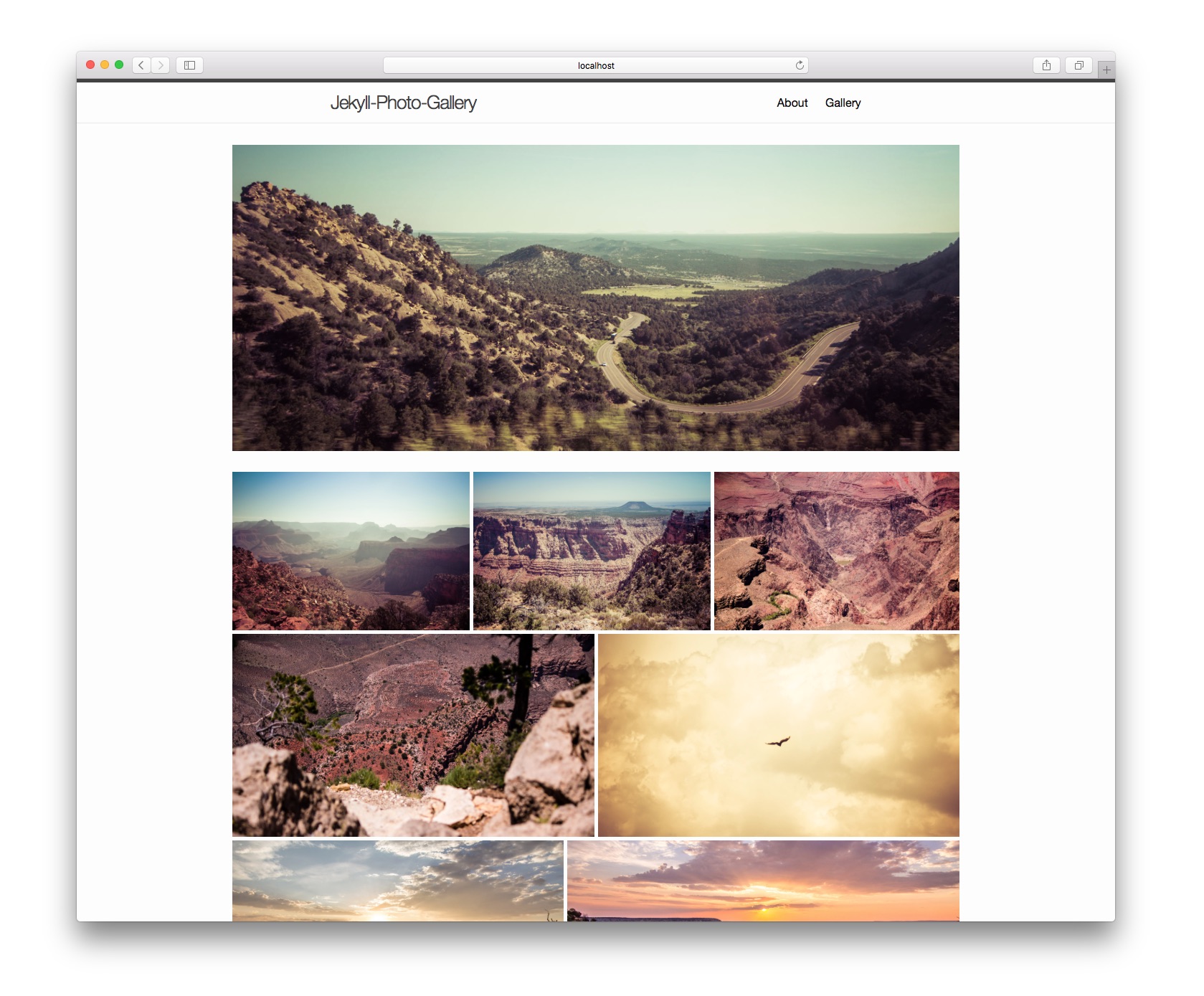
With Jekyll-Photo-Gallery you can easily generate a photo gallery for your Jekyll site or blog.
Jekyll-Photo-Gallery generates a static index and a page for every photo based on the layouts photoIndex.html and photo.html.
These layouts can be easily adapted to fit the style of your site. The photo layout is also automatically enriched with metadata
such as photo location (Google Maps), ISO, F and speed values.
The whole plugin is setup so that new photos can be added with minimal effort. Thumbnails are automatically generated with ImageMagick on macOS and Linux. (It may work on windows as well,
but you need to find out how to install ImageMagick yourself.)
Features
- Dynamically loaded photo stream
- Justified gallery layout
- One URL per picture allows for easy sharing
- Automatic thumbnail generation (on macOS, Linux)
- One subpage per picture, ideal for SEO
- Automatically embedded Schema.org meta information
- Responsive photo view
- Easily adaptable layouts
- Google Maps Geolocation
- EXIF tag supports
- Support for albums/trips (coming soon)
Demos
- Demo site running the “sample-installation”
- My personal blog running a customized version of the plugin*
*The sample-installation is newer and has less bugs.
Installation Guide
- Download this repository and copy the contents of the folder “plugin” to your jekyll installation.
-
Install the following gems or add them to your gemfile if you’re using bundler.
gem ‘exifr’
Optional
1. Enable automatic thumbnail generation
- Install imagemagick for your system (e.g.
apt-get install imagemagickfor Linux orbrew install imagemagickon macOS) - Install mini_magick
gem install mini_magick - Install jekyll-minimagick
gem install jekyll-minimagick. - Remove the ‘#’ in the file “_plugins/jekyll-generate-thumbnails.rb” to enable thumbnail generation
2. Enable Google Maps Geolocation
- Obtain a Google Maps “Static Maps API key” from this site: https://developers.google.com/maps/documentation/static-maps/
- Create a new project for your site (or chose an existing one).
- Make sure that “Google Static Maps API” is selected in the API drawer, then select “Web browser (Javascript)” from the drawer below.
- Enter all the URL(s) of your website from which you’ll be accessing google maps. E.g.
*yoursite.com*or*localhost*or*.yoursite.com/*.. etc. - Open layouts/photo.html and replace the existing key (around line 113) &key=AIzaSyCMXdSigC-sBH… with your new key.
License (MIT)
Copyright (c) 2016 Theodor Winter
Permission is hereby granted, free of charge, to any person obtaining a copy of this software and associated documentation files (the “Software”), to deal in the Software without restriction, including without limitation the rights to use, copy, modify, merge, publish, distribute, sublicense, and/or sell copies of the Software, and to permit persons to whom the Software is furnished to do so, subject to the following conditions:
The above copyright notice and this permission notice shall be included in all copies or substantial portions of the Software.
THE SOFTWARE IS PROVIDED “AS IS”, WITHOUT WARRANTY OF ANY KIND, EXPRESS OR IMPLIED, INCLUDING BUT NOT LIMITED TO THE WARRANTIES OF MERCHANTABILITY, FITNESS FOR A PARTICULAR PURPOSE AND NONINFRINGEMENT. IN NO EVENT SHALL THE AUTHORS OR COPYRIGHT HOLDERS BE LIABLE FOR ANY CLAIM, DAMAGES OR OTHER LIABILITY, WHETHER IN AN ACTION OF CONTRACT, TORT OR OTHERWISE, ARISING FROM, OUT OF OR IN CONNECTION WITH THE SOFTWARE OR THE USE OR OTHER DEALINGS IN THE SOFTWARE.